Get started
Please, connect to lab via one of the presented connection options and then proceed to Connecting to lab devices section.
BYOD Option
Please connect to the lab with Cisco AnyConnect (server name: dcloud-lon-anyconnect.cisco.com, you can get credentials from the proctor):
Start Cisco AnyConnect on your laptop
Copy the Host URL from the AnyConnect Credentials and then paste it in the URL Connection box in the AnyConnect login window.
Click connect

If you get a connection error, remove the
https://part of the URL and try the connection again.Copy a User ID and the password from the AnyConnect Credentials and then paste each into the Cisco AnyConnect login window.
Click OK
Click Accept on the window confirming your connection.
When connected to your AnyConnect VPN session, the AnyConnect VPN icon is displayed in the system tray (Windows) or task bar (Mac).
To view connection details or to disconnect, click the AnyConnect VPN icon and then choose Disconnect.
Connecting to lab devices
After connecting to the VPN of the lab pod, use RDP to connect to the jumphost workstation.
IP Address: 198.18.133.36
Credentials: .\admin / C1sco12345
On the jumphost, we have prepared for you SuperPutty, which will be used for connection to lab devices and as well VSCode, which we will use for easier navigation in file system and execution of our ansible playbooks. Both SuperPutty and VSCode icons are located on the desktop.
In the SupperPutty, you can find list of saved session in LABENS-2969 folder. Via mgmt session, you can access lab manager. Please, use lab manager to initialize lab devices once you are asked to do so in corresponding task.
You can open connections to all lab devices by selecting Connect All option once you will right-click on LABENS-2969 folder.
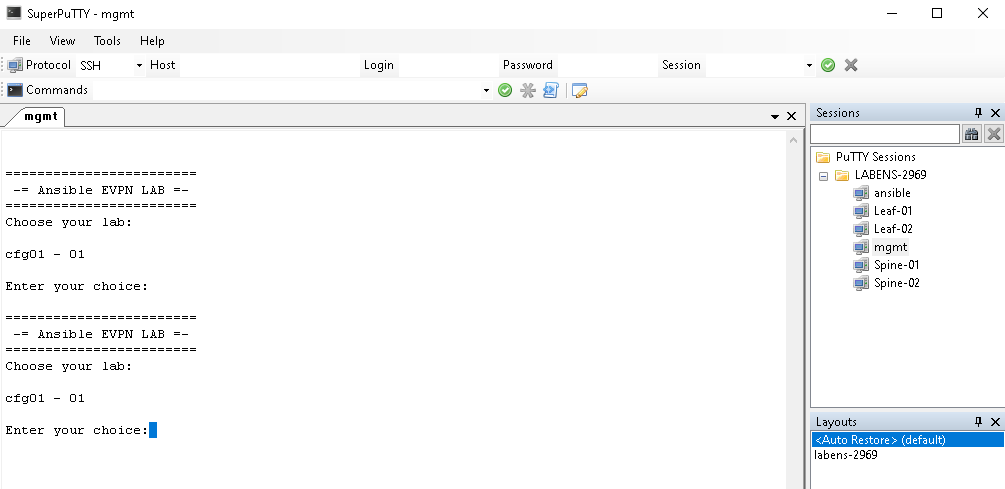
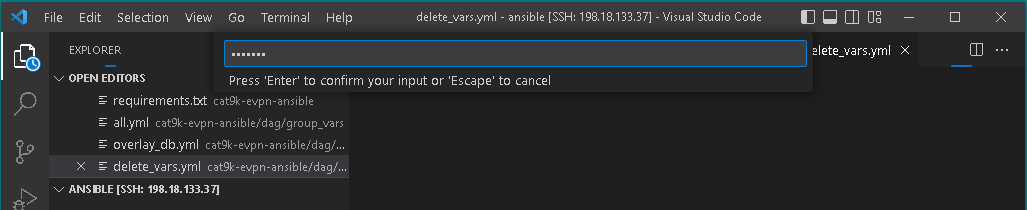
When you will open VSCode, on the top of the window, you will receive prompt asking for password. Please, enter password ansible.
Note
Credentials for the ansible host are ansible / ansible.
When working with VSCode, you can use file navigation on the left side to open files in the middle section, so you can easily browse thru them and terminal section in the bottom to execute commands as instructed in the lab guide.

Note
During the lab, you will combine both SuperPutty, to observe changes on devices after you will execute ansible playbook via VSCode.